July 21st, 2026
Announcement
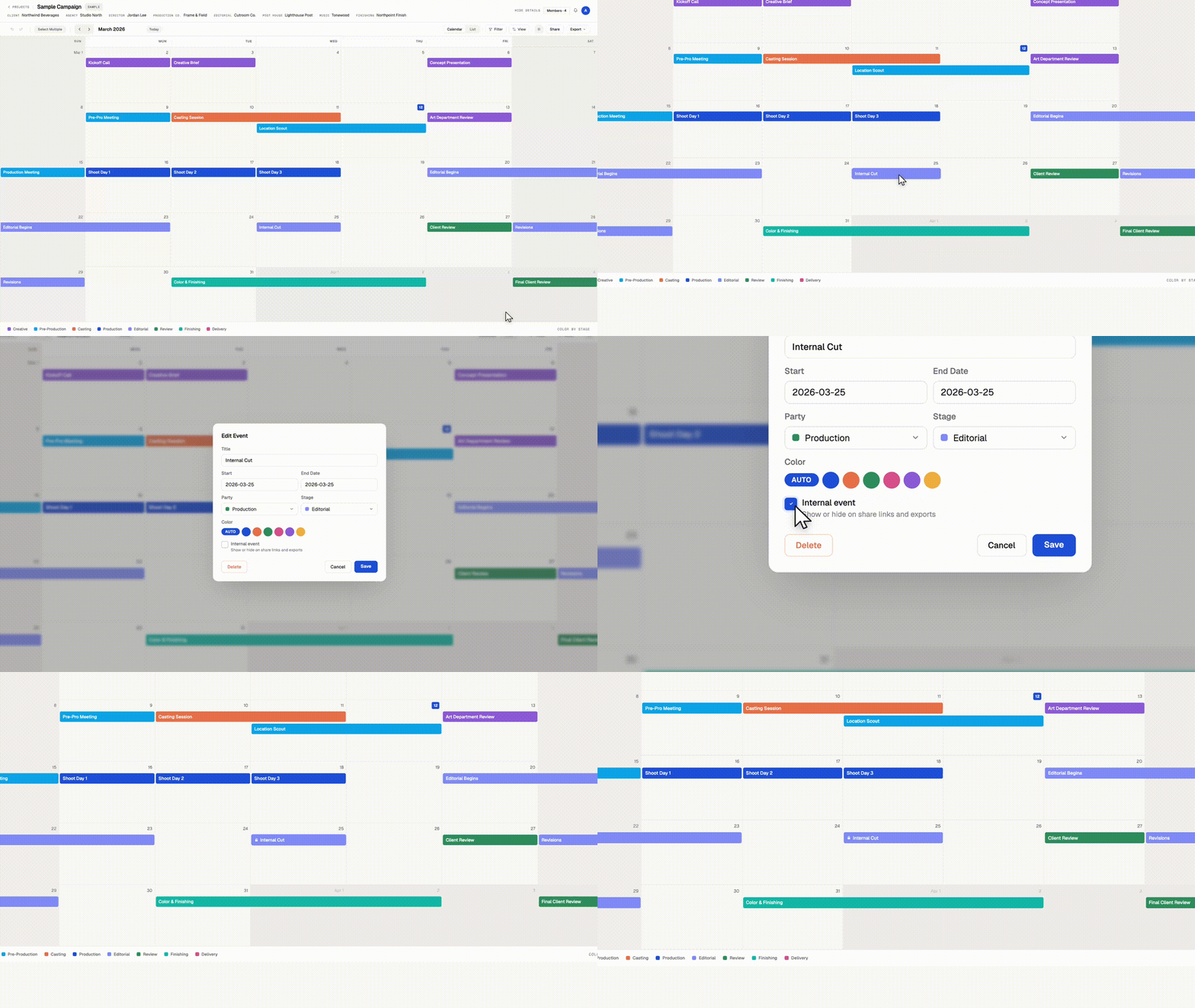
Keep internal milestones off client calendars.
Some dates belong on your production calendar without belonging in front of a client. Internal reviews, budget check-ins, padding days before a delivery. You can now mark any event as internal.
Internal events
Check "Internal event" when creating or editing an event. Internal events appear on your calendar with a small lock icon, and everyone on your team sees them. You choose whether they appear on share links and exports. PDF and PNG exports leave them out unless you turn on "Include internal events" in the export window.
Multiple share links, each with its own settings
Create as many share links per calendar as you need, and name each one. Each link has its own settings for viewer customization, downloads, and internal events. A few ways to use it:
Client link. Internal events hidden. The clean schedule your client sees.
Vendor link. Downloads on, so a vendor can grab the PDF themselves.
Team link. Internal events shown, for freelancers who need the full picture without a Workback login.
Rename, adjust, or revoke any link at any time from the Share menu. Revoking one link leaves the others working.
Available now on every plan.
July 14th, 2026
Fixed
When you have a Filter active — say, only one stage or one party showing — Push and Pull now move only the events you can see. Anything hidden by the filter stays untouched.
"All following events" respects the filter. Right-click an event and push or pull the schedule: the shift applies to the visible events only, so you can slide one department's timeline without touching anyone else's dates.
Selections stay in sync with your filters. In multi-select mode, if you change the filter and events disappear from view, they're deselected too — bulk moves, edits, and deletes only ever touch what's on screen.
No filter? Nothing changes. With filters off, Push and Pull cascade through the whole schedule exactly as before.
As always, a single undo (⌘Z) restores the entire move.
July 9th, 2026
New
Improved
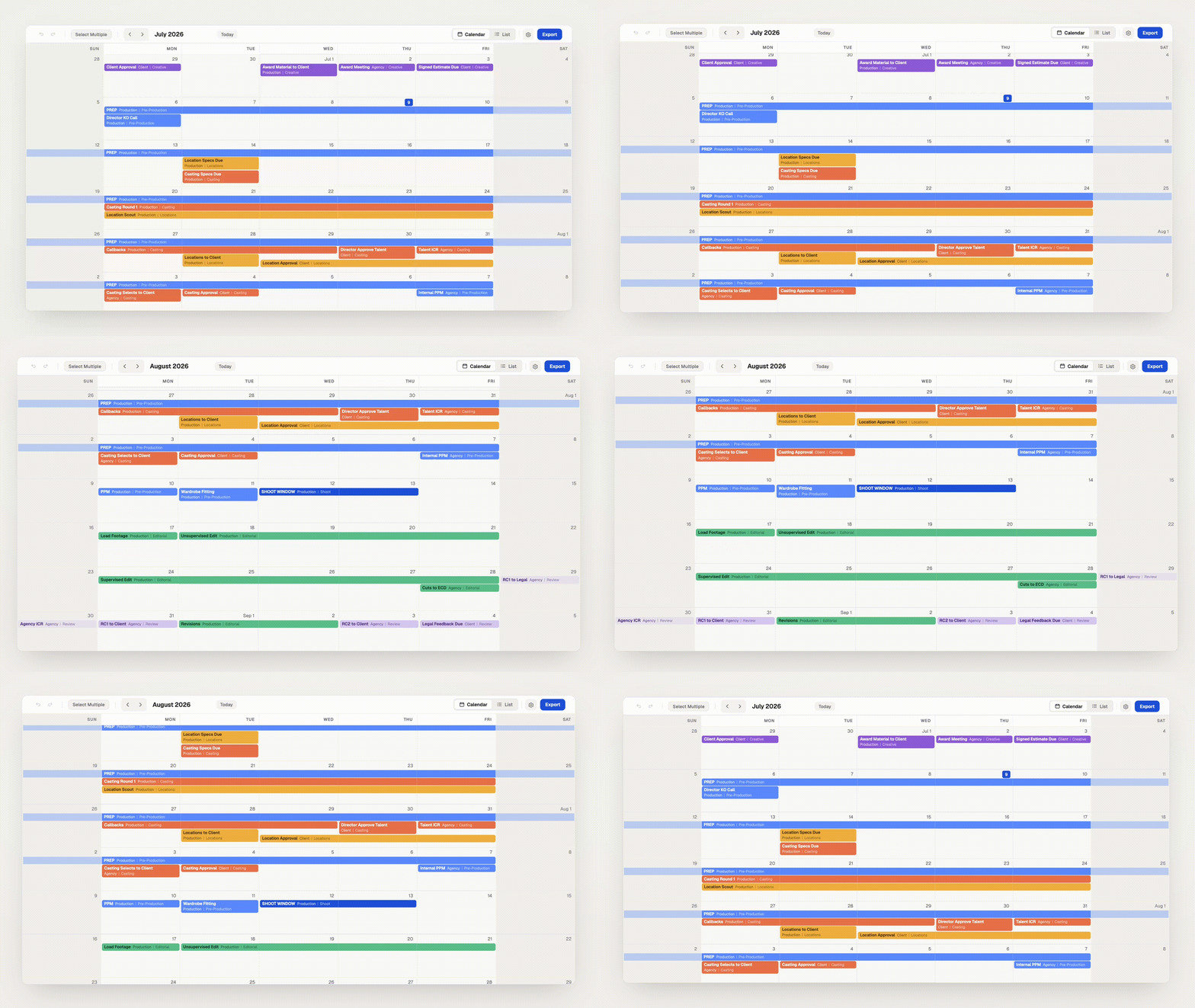
A set of upgrades to how you move through your calendar, on screen and on paper.
Continuous scroll
Your project calendar now flows as one continuous timeline, and so does the Master Calendar. Scroll to glide from month to month, or use the arrows and Today button to snap exactly where you need to be. The month title keeps pace as you move, and every month's first day is labeled ("Jul 1") so you always have your bearings.
Improved exports
Each exported month now includes just the weeks it spans. Fewer wasted rows means every month fits more comfortably on the page, with more room for the schedule itself. Month boundaries are clearer too: on weeks shared between two months, days outside the month are gently recessed and events belonging to the neighboring page appear faded, so an event near a month boundary never reads as a confusing duplicate across two pages.
Everything you rely on works just like before: drag, resize, push/pull, undo, sharing, all of it.
June 29th, 2026
New
Improved
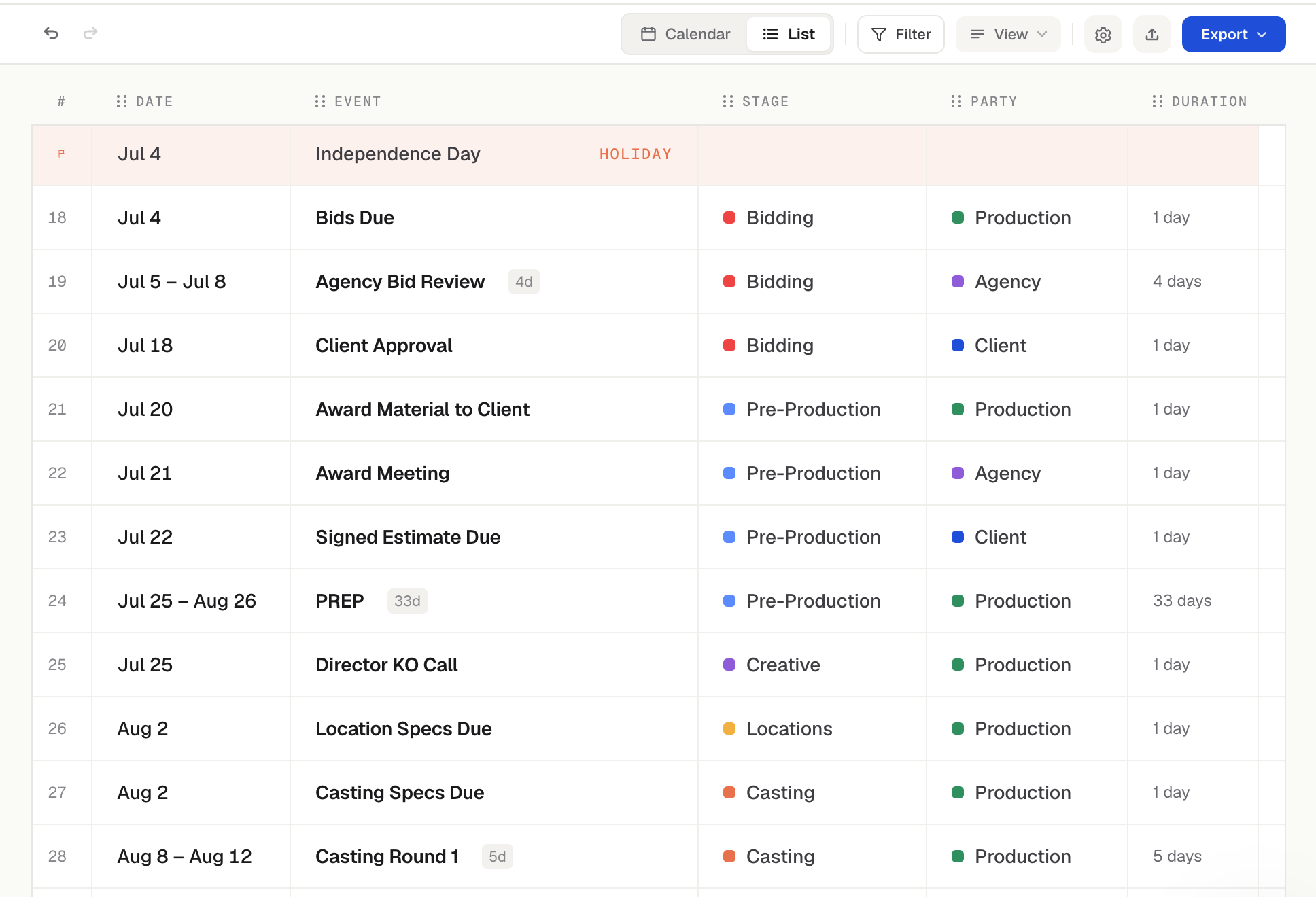
Introducing List View
Every project now has a second way to see its calendar: a clean, chronological list of every event, top to bottom. Flip between them anytime with the new Calendar / List toggle in the project toolbar. Perfect for scanning a whole schedule at a glance, sharing a flat timeline, or working through dates in order.
One row per event, in date order — multi-day events show their full range (e.g. "Mar 25 – Apr 3") on a single row. The list spans the entire project, not just one month.
Pick your columns. Show or hide Date, Event, Stage, Party, and Duration individually, and drag to reorder them however you like.
Your filters come with you. The same party/stage Filter, Color by, and Size settings from the calendar carry straight into the list — change them in either view and both stay in sync.
Make it yours. Choose your date format, and dim completed events so the work ahead stands out. These are personal to you — they won't change how your teammates see the project.
Edit in list view
No need to open each event. Click any cell to edit it in place — rename the event, set its party or stage, change the date, or adjust the duration (which moves the end date for you). Edits save instantly and work with undo/redo, just like on the calendar. You can also add a new event with "+ New event" or right-click to add or delete rows.
Copy to a spreadsheet in one move
Need the schedule in Sheets, Excel, or Numbers? Drag to select any block of cells and hit ⌘C — it pastes in as real, formatted cells.
Export the list to CSV
The toolbar's Export menu now includes List data → CSV, downloading exactly the rows and columns you're looking at. (Your calendar PDF/PNG exports are unchanged.)
A few more touches
Holidays show up as their own rows when you've got holidays turned on, so the working schedule stays in context.
Works on share links too — anyone you've sent a read-only link to can switch to List View, copy rows, and download the CSV (no account needed), when downloads are enabled on the link.
June 5th, 2026
New
Improved
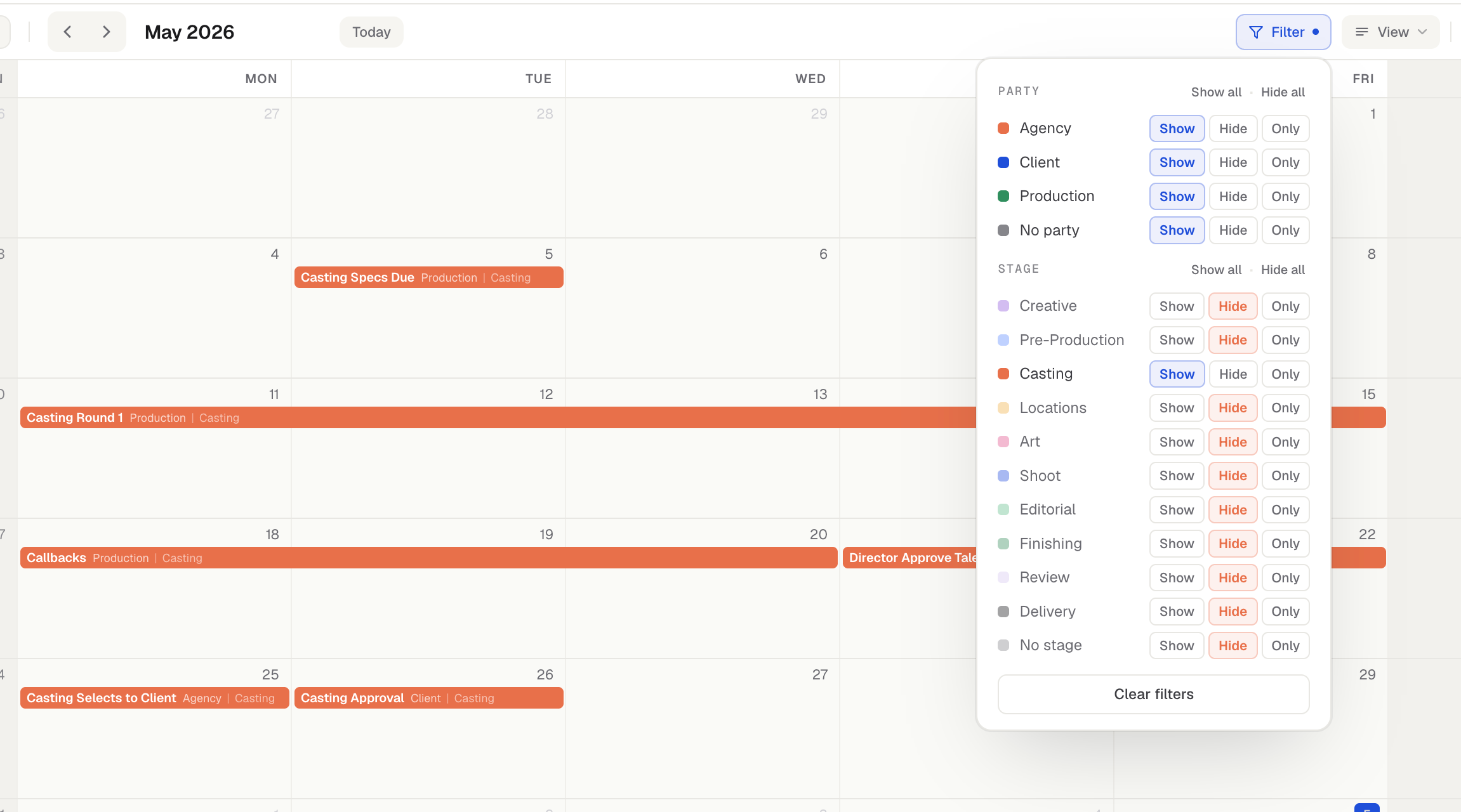
Holidays on your calendars
You can now show public/federal holidays right on a project calendar.
Toggle holidays on or off per calendar from View options.
It defaults to your region automatically, and you can add more regions to a single calendar — handy when you're shooting somewhere else.
Push/Pull can skip holidays (alongside skipping weekends), so shifting a schedule lands on real working days.
Holidays also show up in your PDF/PNG exports (with their own on/off toggle in the export window).
Filter your calendar by party & stage
A new Filter menu lets you show or hide events by party or stage. Use this to single out a particular stage, quickly see all events linked to a particular party, or reduce clutter.
Add & rename parties and stages without leaving the event window
When creating or editing an event, you can now add a new stage/party or rename an existing one straight from the dropdown — no trip to Settings. You can also leave the party or stage blank on an event.
Control weekend shading
Don't want weekends greyed out? There's a new toggle (in View options and in the export window) to turn it off. Either way, event text on weekends now always stays fully readable.
Other improvements
Master Calendar now defaults to showing project names (with party/stage off) and remembers however you last set it.
The edit-event window is larger, and the party/stage dropdowns now open over the window instead of getting cut off.
Renaming a folder is instant (no more waiting for the old name to update).
Clearer loading feedback when signing in or creating an account, so it no longer looks stuck.
Cleaner event-label and color-key wrapping on tighter layouts.